Annotations
When the viewer is in Near Native view, you can apply annotations to a document. Annotations allow you to draw attention to a specific part of a document by adding a callout in the form of a shape, highlighting or text.
Available Annotations
Tip: In Axcelerate 5, click  next to an annotation icon to see the other listed options.
The available annotation tools are:
- Select
- Arrow Pointer
- Text
- Changemark/Checkview
- Cloud/Highlight
- Line/Polyline/Crossout
- Rectangle/Polygon/Ellipse
Apply an Annotation
To apply an annotation, select the tool you wish to use and then use your mouse to draw on the document image in the viewer.
Tip: After you select an annotation tool, additional options become available, allowing you to change the color of the annotation or affect text.
Annotations with Interactive Functionality
These annotations have interactive functionality:
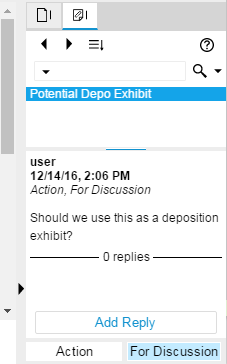
- Changemark annotations allow you to have interactive conversations with other users. After you add a Changemark annotation, a dialog box opens. You then give the note a title, input a comment or question, and designate an action related to the note.
- When another user sees the note, they can add a reply. To see the content of a note, expand the thumbnail view by clicking on the right side of the Viewer panel. The
 tab displays the content of the annotation and allows you to reply.
Thumbnail View Showing a Changemark Annotation

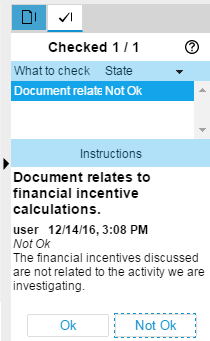
- Checkview annotations allow you to have interactive checks with other users. After you add a Checkview annotation, a dialog box opens. Input a note regarding what needs to be checked.
- When another user sees the note, they can approve it by clicking Ok or they can click Not Ok and add a reply. To see the content of a Checkview annotation, expand the thumbnail view by clicking on the right side of the Viewer panel. The
 tab displays the content of the annotation and allows you to reply.
Thumbnail View Showing a Checkview Annotation

 Changemark
 Checkview