Viewer Tools
You can adjust the display of a document and move between pages of a document using tools located at the bottom of the Viewer panel.
The available tools vary between document views.
|
Tool Name |
Icon |
Description |
|---|---|---|
| Background Color and Color Settings |

|
Changes the background display color, which may uncover text that is hidden because it is the same color as the background. This tool is also helpful for viewing layers in AutoCAD files. |
|
Rotate 90 |
|
Rotates the document 90 degrees counterclockwise. |
|
Fit All |
|
Resizes the document so the entire image is displayed in the viewer. |
|
Fit Width |
|
Resizes the document page so its width is the same as the width of the viewer. This is the default scaling. Note: If you change the scaling, it will persist across multiple pages, documents and projects, until you change it again. |
|
Zoom In/Out |
|
Magnifies or reduces the magnification of a document. |
|
Pan/Zoom |
|
Allows you to use your mouse to scroll the document up and down or side to side. Click the icon, then click on the document view and drag your mouse in the desired direction to move the document. |
|
Zoom Window |
|
Allows you to zoom in on a selected region of the document view. Click the icon, then click in the document view and use your mouse to draw a box around the region you want to enlarge. Release the mouse button to zoom in on the selected region. |
|
Pages |
|
Use the arrows to move between pages of the document or click the drop-down arrow to select a specific page. You can also type a page number into the text box and hit ENTER on your keyboard to jump to that page. |
|
Help |
|
Opens the OpenText Axcelerate Help Center. |
|
Select |
|
Selects annotations or redactions for edit, i.e., allows you to move, resize, reshape or delete them. |
|
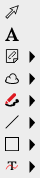
Annotation Tools |
|
You can add various types of annotations to a document in Near Native view. Annotations are stored separately from the document and are not produced.
|
|
Redaction Tools |
|
You can add various types of redactions to a document in Redaction view.
|
|
Save Markup |
|
Allows you to manually save applied annotations or redactions without moving to another document or changing views. |
|
|
|
Prints the current document. |
|
Select Text |
|
Allows you to mouse over an annotation or redaction to see the time and date the markup was applied. Redactions also display the specified Redaction Reason. |
|
Select Region |
|
Located under the Select Text tool, you can use Select Region to draw a box around a specific area of text and that text is then displayed in the Selected Text window. There you can use CTRL + C to copy the text and CTRL + V to paste it into another application, such as an email or Microsoft Word document. |
|
Thumbnail View |
|
This icon, located on the right side of the Viewer panel, expands thumbnail view. Thumbnail view can be used to jump between pages of a document. It also allows you to quickly identify any pages that contain annotations or redactions. |







Click  to show or hide additional viewer tools, discussed in the related topics.