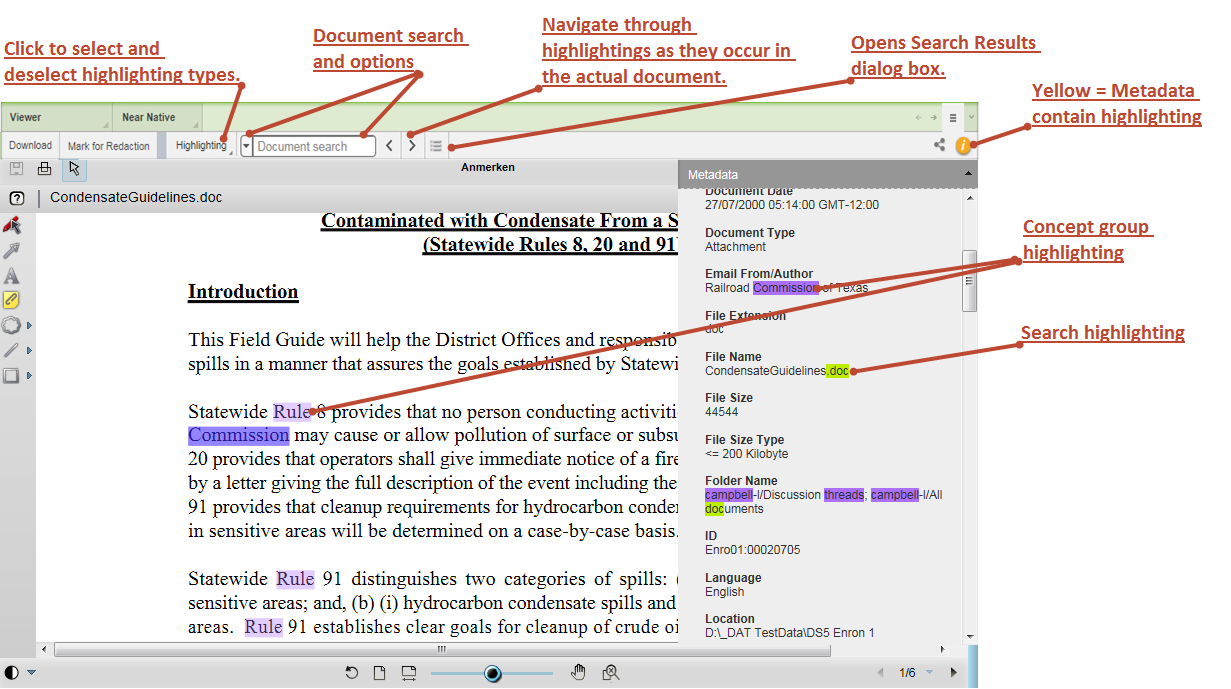
The document viewer in the Axcelerate 5 front end contains highlighting options that users can adjust to suit their preferences.
Note: Administrators can modify the available highlighting types and the highlighting colors.
Highlighting is applied in these places:
- Document viewer
- If a term is relevant for more than one highlighting type, highlighting overlaps. Small stripes in different colors show which highlighting types apply.
- When you navigate between highlighting hits, the active hit is shown in one color.
- If a view shows an image, highlighting is only possible in the Metadata fly-in. Accordingly, a Metadata Highlighting menu is shown, instead of the Highlighting menu.
- Metadata fly-in
- If terms exist in the metadata fly-in, they are highlighted in color by type, to match the Highlighting menu. If a term is relevant to more than one highlighting type, colors overlap. The color of the highlighting with the highest priority is shown. A differently colored small stripe to the left indicates that two or more highlighting types apply for the term.
-
Tip: An orange
 icon in the viewer toolbar tells you that the
Metadata fly-in contains highlighted terms.
icon in the viewer toolbar tells you that the
Metadata fly-in contains highlighted terms.
Highlighting in a document and its metadata