Bulk Conversion Jobs
In Axcelerate 5, Administrators and Case Managers can submit multiple documents for conversion.
To create a bulk conversion job:
- On the Analysis page, filter to the documents to be converted.
- Use the selection tool to select all documents in the Results list.
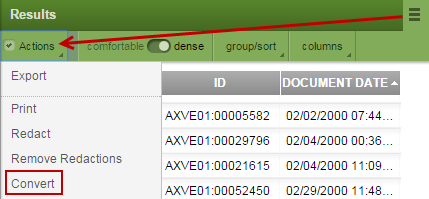
- Click the toolbar button in the Results list panel header and select .
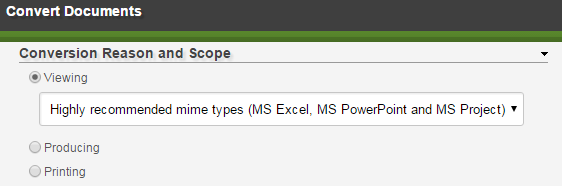
- In the Conversion Options window, you have three conversion options: Viewing, Producing, Printing. The main difference between these conversion options is whether display files are stored or only cached in the viewer’s display list cache.
- Creates XDL files and stores them, together with the display files and the text index file, in the CORE storage.
- When documents are viewed, the display files are copied to the viewer’s display list cache.
- As all required files are available and must just be copied, display is quick.
- This is the best conversion if you want to reduce the time users have to wait for a document to be displayed to the absolute minimum.
- Creates XDL files for the Redaction view and stores them.
- Display files are only created when documents are viewed, and only for the display list cache.
- For most document types, it makes no difference if you convert for producing or for printing. Only Microsoft Excel files are converted differently.
- Creates XDL files for the Near Native view and stores them.
- Display files are only created when documents are viewed, and only for the display list cache.
- For most document types, it makes no difference if you convert for producing or for printing. Only Microsoft Excel files are converted differently.
- If you select Viewing, you also have the option to specify which Mime Types are converted:

 Conversion for viewing
Caution: This conversion option has high storage demands. The display files have up to five times the size of the original documents. Therefore, we recommend to use this conversion option only for documents that belong to the highly recommended MIME types that need long conversion times, like Microsoft Excel files.
Conversion for producing
Conversion for printing
Highly recommended MIME types (MS Excel, MS PowerPoint and MS Project): With this setting, only those document types are included that usually take longest to convert and prepare for viewing. Selected documents of other types are not converted.
Recommended MIME types (MS Word, MS Excel, MS PowerPoint and MS Project): With this setting, all Microsoft Office documents and Microsoft Project documents are included for the conversion.
All MIME types: With this setting, all documents in the scope are converted, independent of document type, including documents without detected MIME type or of type Unknown.
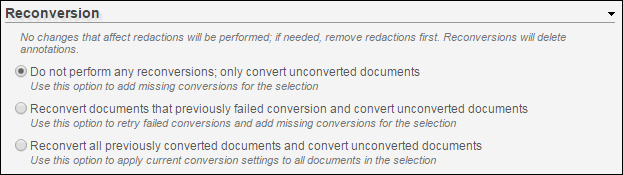
- In the Reconversion area, select Do not perform any reconversions; only convert unconverted documents. If you specifically selected documents that you wish to reconvert, select one of the appropriate remaining options.
- Specify a Job Name and optional description for the conversion job.
Tip: This name is used on the Jobs page and for the Job Processing Smart Filter.
- Click the Convert button to start the conversion job.
- To monitor the status of the job, navigate to the page.